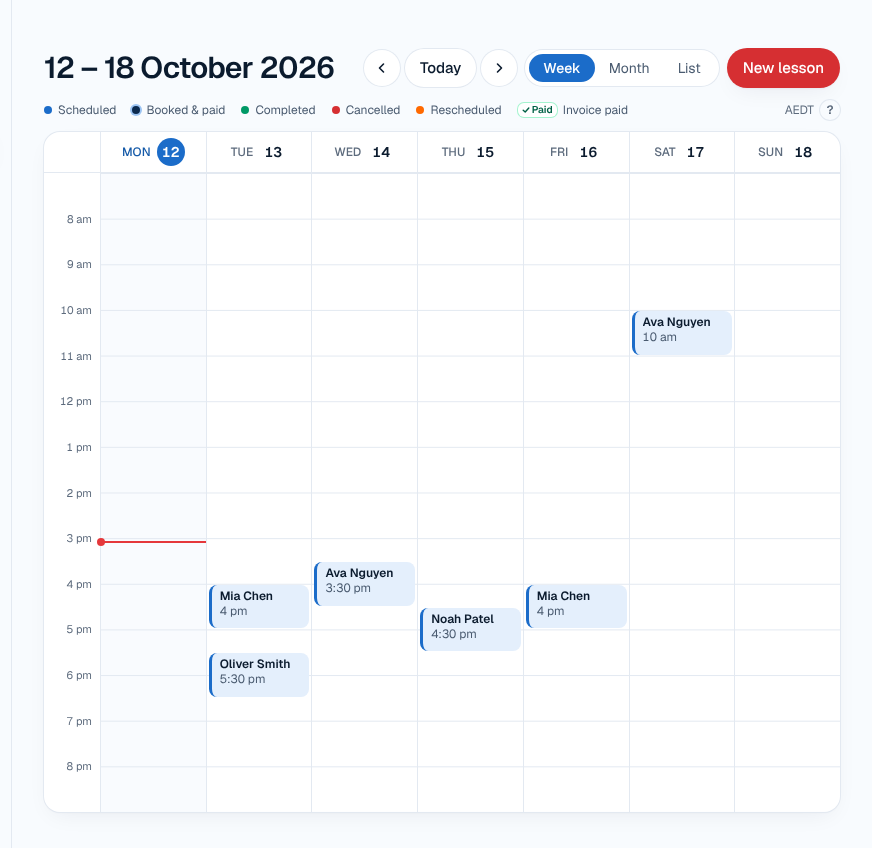
Tutor scheduling software keeps every lesson, student and change in one calendar, so you always know who you're teaching, where and whether it's been paid. TutorFlow gives you a day, week and month calendar, repeating weekly lessons, statuses that feed straight into invoices, and a private feed that shows your lessons in Google, Apple or Outlook calendar.
The scheduling problem in a tutor's week
A tutor's timetable looks tidy on paper: Mia on Mondays at 4 pm, Noah on Tuesdays online. Then term starts. A family swaps to Wednesdays for swimming, someone is sick, and exams mean extra Year 12 sessions.
If your schedule lives in a paper diary, a notes app and a few text threads, three things go wrong:
- You lose track of changes. A lesson moved by text never makes it to the diary.
- Billing drifts from reality. At the end of the month you're guessing which lessons actually happened.
- Online lessons need hunting. You're searching old emails for the right meeting link two minutes before start time.
A lesson scheduling app should make the calendar the single source of truth, with reminders and invoices following from it.
How scheduling works in TutorFlow
Add your students once
Each student has their parent's contact details, a rate (per hour or per lesson, AUD incl. GST), a usual lesson length and whether lessons are Online or In person. Moving from a spreadsheet? You can import students from a CSV file instead of typing them in.
Schedule a lesson or a weekly series
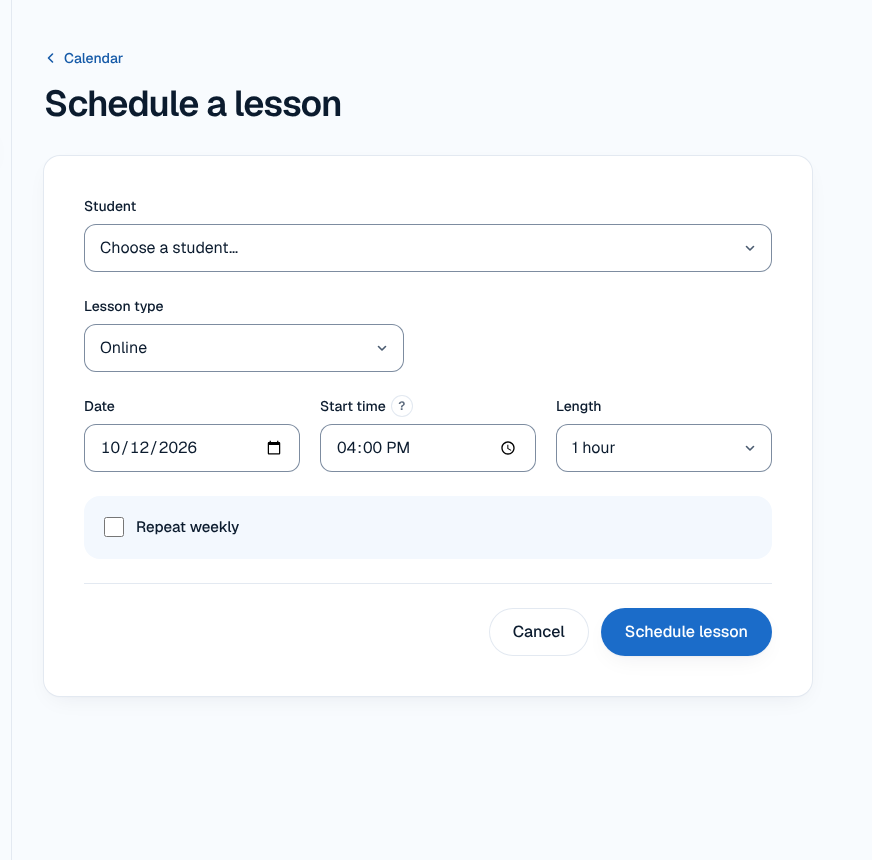
- Press New lesson on the Calendar or Today page.
- Choose the Student, Date, Start time and Length.
- Choose the Lesson type. It starts as the student's usual type and you can change it for one lesson.
- For a regular slot, tick Repeat weekly and choose Repeat until (up to a year ahead).
- Press Schedule lessons.
See your week at a glance
Open Calendar and choose Week, Month or List (phones start on List). Colours show each lesson's status: scheduled, booked and paid, completed, cancelled and rescheduled. The Today page shows the day's lessons alongside your revenue tiles.
Move, cancel or change a series
- Move a lesson: set its status to Rescheduled and pick the new time. The original stays on your calendar, marked rescheduled and linked to the new one, so you have a record of what changed.
- Cancel: set the status to Cancelled. It won't be invoiced.
- Change a series: press Edit lesson and choose Only this lesson or This and all following lessons. To stop a weekly lesson from a certain date, press End this weekly series….
What parents see
Parents don't need an account. They get automatic lesson reminder emails before each lesson (24 hours and 1 hour before by default), showing the time in their own timezone and, for online lessons, your meeting link.
With online booking, families can also pick times from your availability and pay upfront, straight into the same calendar.
Details that matter
One meeting link for every online lesson
Save your Zoom, Google Meet or Teams link once in Settings. TutorFlow uses it for every online lesson, in reminders and in your calendar feed. An online lesson can't be saved without a link, so you never send a family a reminder with nothing to click. TutorFlow doesn't connect to the Zoom or Google APIs; it simply reuses the link you saved.
Your timezone, their timezone
You set your own timezone, and lessons are shown in it. If a family lives elsewhere (a Perth family with a Sydney tutor, say), choose their timezone on the student and their emails show their local time.
Lessons complete themselves
Once a lesson finishes, TutorFlow marks it Completed. If you set a status by hand afterwards, your choice is kept. Completed lessons are exactly what tutoring invoice software needs: at the end of the fortnight, you generate invoices from them in one step. Once a lesson is on a sent invoice, its status is locked so the invoice stays correct.
See lessons in the calendar you already use
Press Connect your calendar on the Calendar page to add a private feed to Google Calendar, Apple Calendar or Outlook. Your lessons appear in a calendar called TutorFlow with the student's first name, subject and the meeting link or "In person". Parents' names, emails and phone numbers are never included.
The sync is one-way, and calendar apps check for updates on their own schedule, so changes can take an hour or more to appear.
Works on your phone
TutorFlow is a web app that works in your phone's browser, and you can add it to your Home Screen so it opens like an app.
Who it suits, and honest limits
TutorFlow suits independent tutors in Australia with regular weekly or fortnightly students, a mix of online and in-person lessons, and families who pay by invoice or upfront.
What it doesn't do:
- No two-way calendar sync. Changes made in Google or Outlook don't come back.
- No Zoom or Google API integration. You save one meeting link and it's reused.
- No SMS or chat inbox. Reminders are emails; keep using the messaging apps you already use.
- No team or multi-tutor rostering yet (the Team plan is coming soon).
Just starting out? See our guide to starting a tutoring business in Australia.
Frequently asked questions
Can I schedule a weekly lesson for the whole term?
Yes. When you add a lesson, tick Repeat weekly and choose a Repeat until date up to a year ahead. TutorFlow creates every lesson in the series. Later, you can edit just one lesson or that lesson and all following ones, or end the series from a chosen date if a student stops partway through the term.
Does TutorFlow sync with Google Calendar?
Yes, one way. TutorFlow gives you a private calendar feed you can add to Google Calendar, Apple Calendar or Outlook. Lessons you add, move or cancel in TutorFlow appear there, but changes made in your calendar app don't come back. Calendar apps refresh on their own schedule, so allow an hour or more for updates.
How do online lessons work?
Save one meeting link (Zoom, Google Meet or Teams) in Settings, and TutorFlow uses it for every online lesson. Families see it in their reminder emails and you see it in your calendar feed. Each lesson can be online or in person, starting from the student's usual type, and an online lesson can't be saved until you've added your link.
What happens when I reschedule a lesson?
Set the lesson's status to Rescheduled and choose the new date and time. TutorFlow creates the new lesson and keeps the original on your calendar marked Rescheduled, linked to the new one. That gives you a clear record of every change, and only the lesson that actually happens is marked completed and invoiced.
How much does TutorFlow cost?
TutorFlow is free for a month (card required), then $12.50 a month for the first 12 months, then $25 a month or $250 a year. Prices are in AUD and include GST, and you can cancel anytime. Scheduling, reminders, invoicing and online booking are all included.